Yoto Card Templates
Watched a lot of parents in Facebook groups spend 15-20 minutes per card fighting with Canva templates or Google Slides. Some workflows work great for certain people. Others got frustrating fast.
What I saw: Parents hunting for templates, resizing images to fit, re-exporting when dimensions were off, then doing it all again for the next card. The actual creative part—picking images their kids would love—took 2 minutes. The template setup took way longer.
Built Yoto Labels to skip most of that process and get back to the fun part.
Why Templates Got Frustrating
Different parents use different tools:
- Canva works if you're already familiar with it
- Google Slides some parents swear by
- Photoshop/Illustrator if you have them
The problem isn't the tool. It's the same repetitive steps every time:
The template process:
- Find or download a template
- Open in your design tool
- Import your image
- Resize and position to fit exactly
- Export with correct settings
- Check if it printed right
- Repeat for every single card
Total time: 10-15 minutes per card. Most of that is steps 3-6, which are identical each time.
The Simpler Process
Built this after watching my son wait while I fiddled with Canva for the third Saturday in a row.
How it works now:
- Upload one or multiple images
- Crop if you want to adjust framing
- Pick your paper format (Letter, A4, Legal, photo paper)
- Get print-ready PDF
Total time: 2 minutes per card. Everything runs in your browser—your images stay private, nothing uploads to a server.
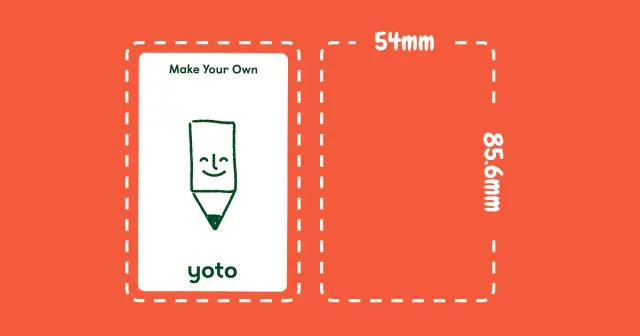
Yoto Labels handles the 54mm × 85.6mm sizing automatically. You focus on picking images your kid will actually use.
If You Want to Design From Scratch
Some parents like designing custom layouts in Canva or other tools. That's totally valid—especially if you're making themed sets or adding text overlays.
Where to find templates:
Facebook Yoto groups share templates sometimes. Quality varies. Many are out of date or require email signup. Some are behind paywalls on blog posts.
If you find one that works for your workflow, use it. No wrong way to make labels.
Setting up your own template:
For Canva:
- Set custom size to 54 × 85.6mm
- Design your layout
- Save as template for reuse
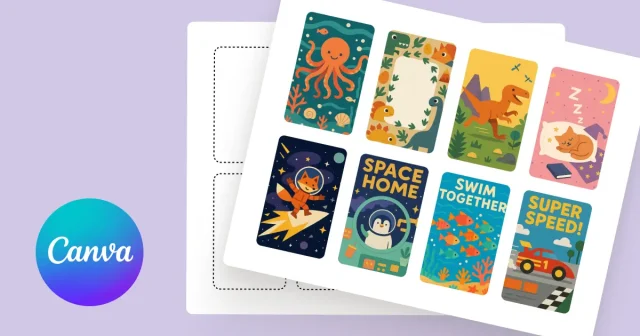
- Full Canva tutorial here if you want step-by-step
For Photoshop/Illustrator:
- New file: 54mm × 85.6mm at 300 DPI
- Add 3mm bleed for edge-to-edge printing
- Keep text at least 6mm from edges
For Google Slides:
- Custom page size: 2.1" × 3.4"
- Design slides as individual cards
- Export as PDF
Yoto Labels is there if you want to skip the setup part. But if templates work for you, keep using them.
Common Questions About Yoto Card Templates
Where can I find free Yoto card templates?
Some Facebook Yoto groups share them. Many blog posts have them but they're often outdated or require email signup. Yoto Labels auto-sizes any image to Yoto card dimensions if you want to skip the template hunt.
What size should Yoto card templates be?
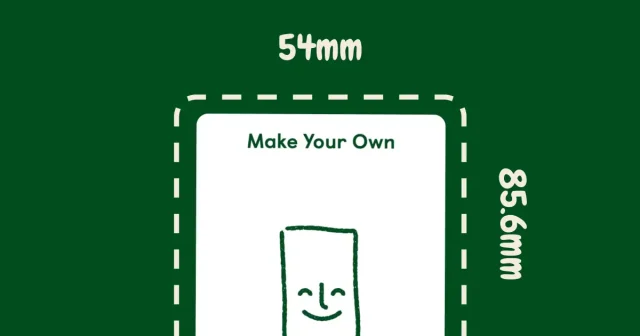
54mm × 85.6mm (or 2.1" × 3.4" in inches). That's the exact size of Yoto cards.
Do I need Canva Pro for Yoto templates?
Nope. Free Canva works fine for making Yoto card templates. Or use Yoto Labels and skip Canva setup entirely.
What's the best Yoto MYO template?
Yoto Labels takes care of everything—just upload images and get a PDF. But if you want to design from scratch, it depends on your workflow. Some parents like Canva, some use Google Slides. Pick whatever gets you printing labels fastest so you can get back to the fun part with your kid.
Can I batch create multiple cards at once?
With Yoto Labels, yes—upload multiple images at once and get a PDF with all of them sized correctly. Saves time when making a series.